Contact for the Support

TTSun Solar Lite WordPress Theme

Created By - www.themestulip.com/ · Version 1.0

Theme Installation

  • Log in to the WordPress Dashboard.
  • Go to Appearance > Themes and activate TTSun Solar (lite).
  • Requires WordPress 5.0+ (tested up to 6.8) and PHP 7.4+.
  • All theme options are under Appearance > Customize → TTSun Solar Theme Options.
  • Also set Site Identity, Menus, Widgets, and Homepage Settings in the Customizer.

Compatibility

  • WordPress 6.8+ – tested for current WordPress releases
  • Responsive / Mobile Friendly – adaptive layout with mobile drawer menu
  • Translation Ready – text domain ttsunsolar
  • Custom Logo – Site Identity logo support
  • Featured Images – used on blog cards and service pages
  • Font Awesome 6 – contact and social icons in header / footer

Customizer Overview

Open Appearance > Customize. The left panel holds controls; the right side shows a live preview. Theme-specific options live under TTSun Solar Theme Options.
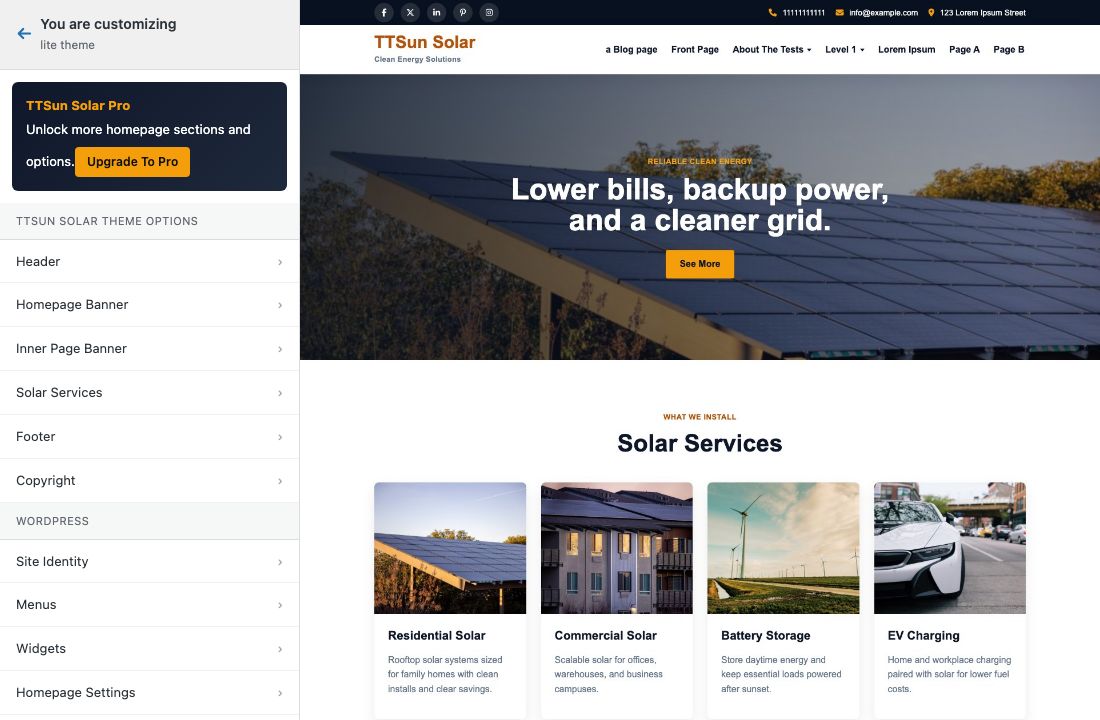
Customizer overview — TTSun Solar Theme Options

Sections inside TTSun Solar Theme Options:

  • Header – phone, email, address, social URLs
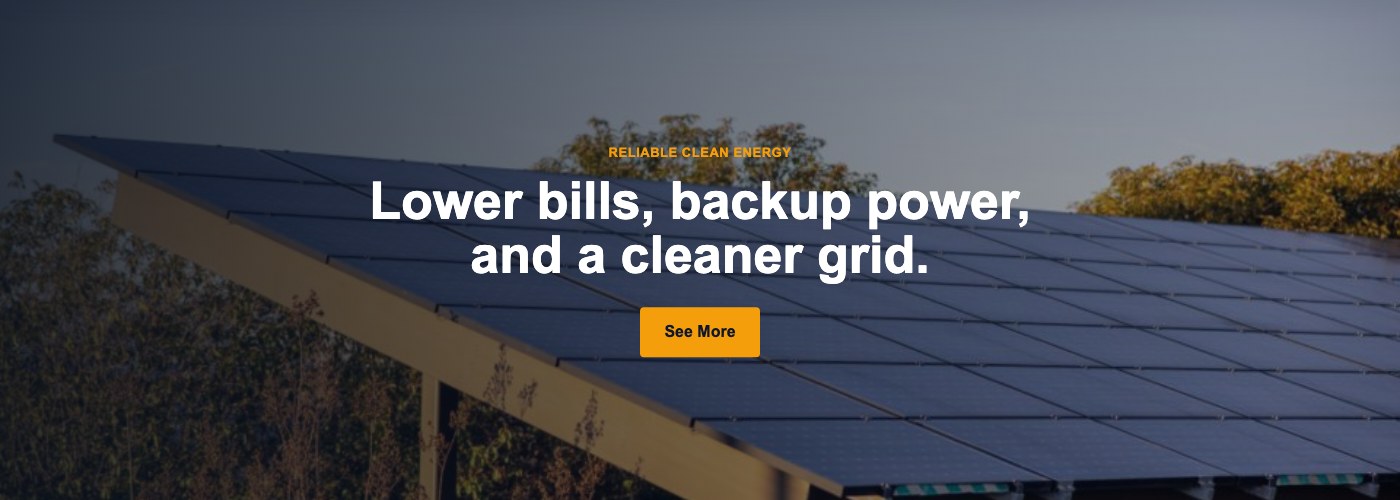
  • Homepage Banner – hero image, tagline, title, button
  • Inner Page Banner – image for pages / posts / archives
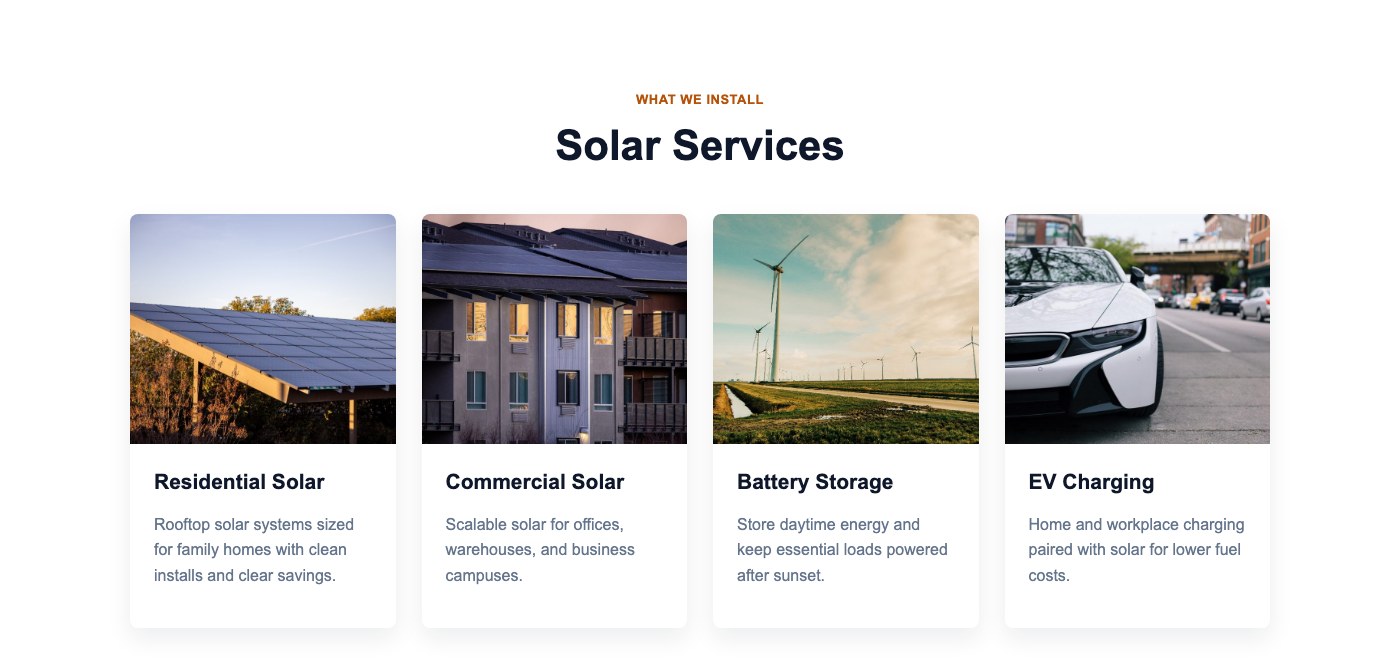
  • Solar Services – show/hide, titles, 4 page cards
  • Footer – about, titles, contact, right-bar text
  • Copyright – copyright text and ThemesTulip credit link

Also use WordPress panels: Site Identity, Menus, Widgets, Homepage Settings.
Site Identity & Logo

Go to Appearance > Customize → Site Identity.

  • Logo – upload a custom logo (optional). When a logo is set, the text title can be visually hidden.
  • Site Title – shown in the header brand area. If empty, the theme falls back to TTSun Solar.
  • Tagline – shown under the title. If empty, falls back to Clean Energy Solutions.
  • Site Icon – favicon for browser tabs.

Menus & Widgets

  • Primary menu – assign under Appearance > Menus (or Customizer → Menus) to the Primary location. Supports multi-level dropdowns on desktop and accordion expand on mobile.
  • Footer menu – assign to the footer / Quick Links location when available.
  • Blog sidebar – add widgets under Appearance > Widgets (search, recent posts, categories, etc.).
  • Homepage Settings – choose Your latest posts (banner + services + blog layout) or a static page.

Homepage

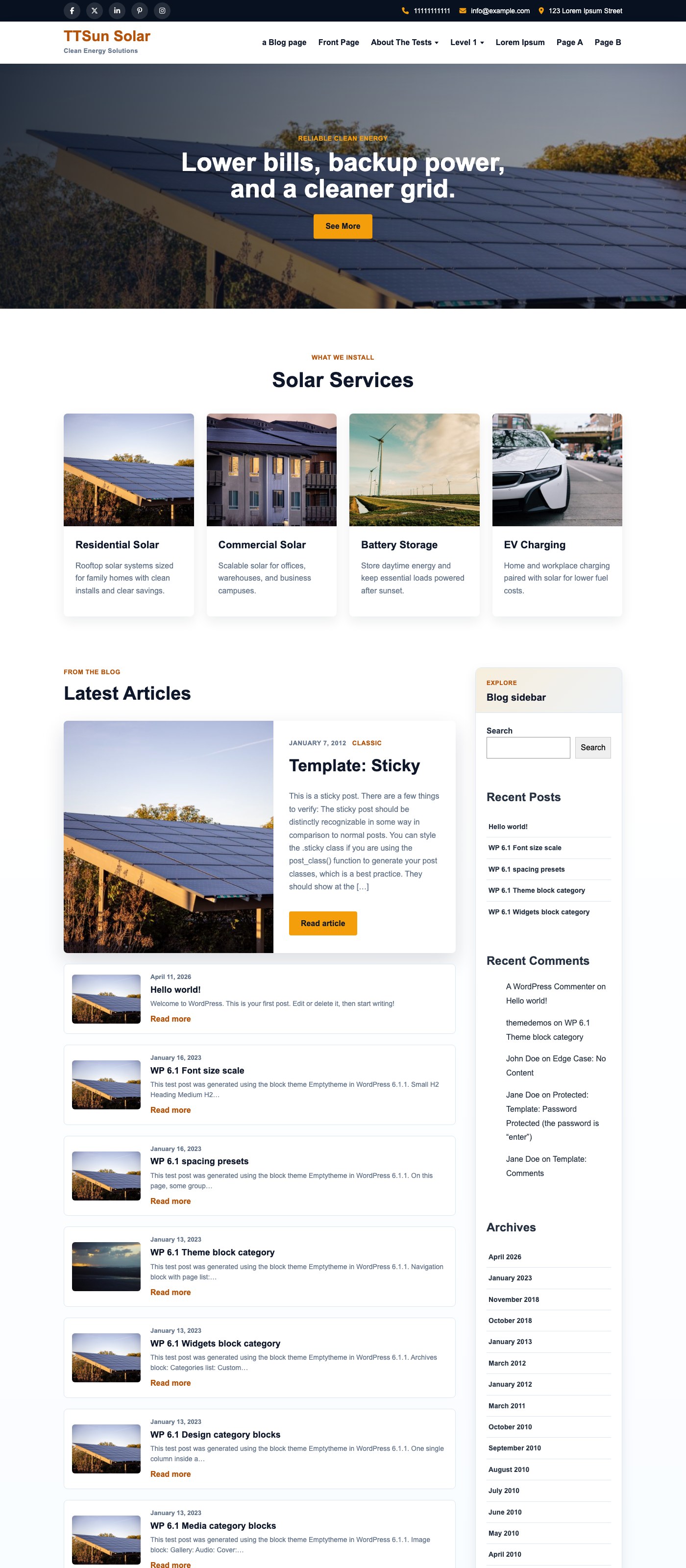
With Your latest posts, the homepage shows: Header → Homepage Banner → Solar Services → Latest Articles (Plan A blog) → Footer → Copyright.

TTSun Solar Lite homepage

Header & Top Bar

Dark top bar (social + contact) and white brand row with primary menu.

Header and top bar frontend
  • Social icons – Facebook, X/Twitter, LinkedIn, Pinterest, Instagram
  • Contact – phone, email, address
  • Brand – logo or site title + tagline
  • Primary menu – desktop flyouts / mobile drawer

How to edit: see Edit Header and Site Identity.

Solar Services

Four service cards on the homepage. Each card can pull title, excerpt, and featured image from a selected page (or uses demo defaults).

Solar Services section frontend

How to edit: see Edit Solar Services.

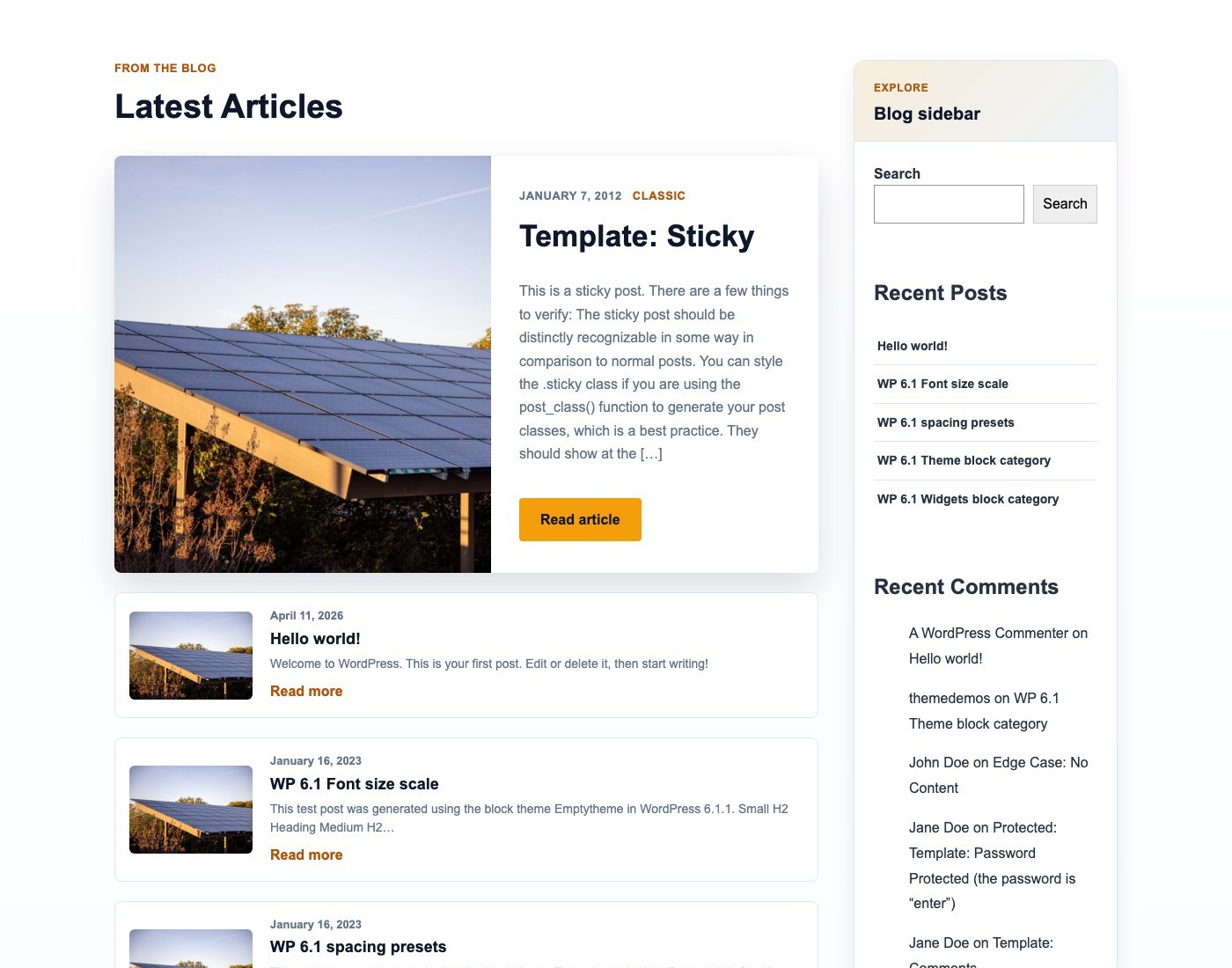
Latest Posts / Blog

Plan A layout: featured lead post + stacked list, with sticky sidebar widgets.

Latest posts blog layout
  • Edit posts under Posts in the dashboard.
  • Sidebar widgets: Appearance > Widgets.
  • Reading settings control posts per page.

Inner Pages

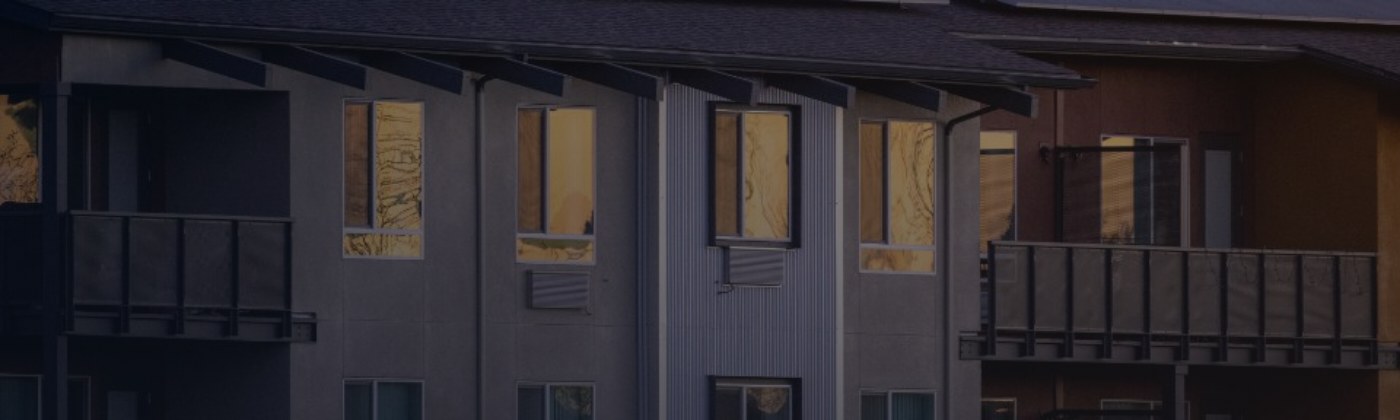
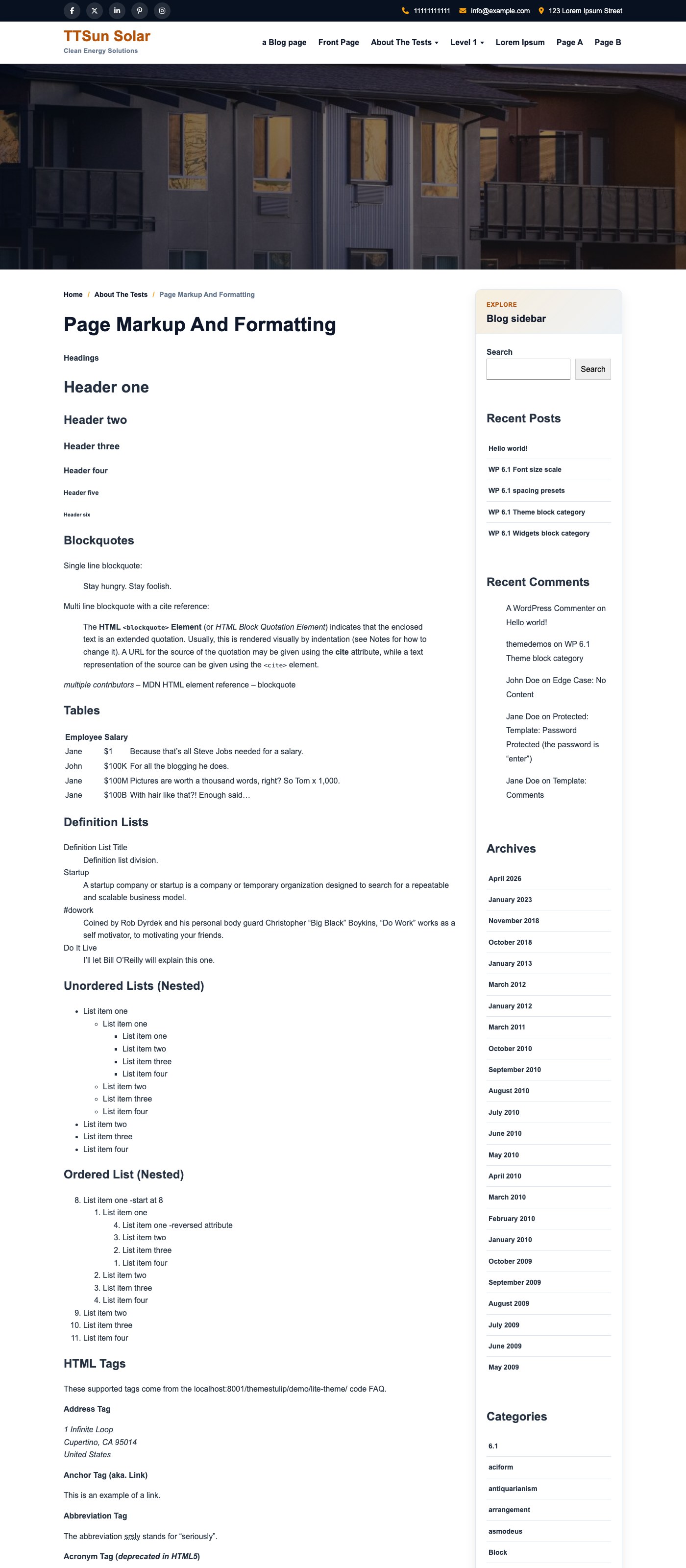
Pages, posts, archives, and search use a separate Inner Page Banner (image only), plus breadcrumbs and content.

Inner page banner Inner page content example

How to edit the banner image: see Edit Inner Page Banner.

Footer

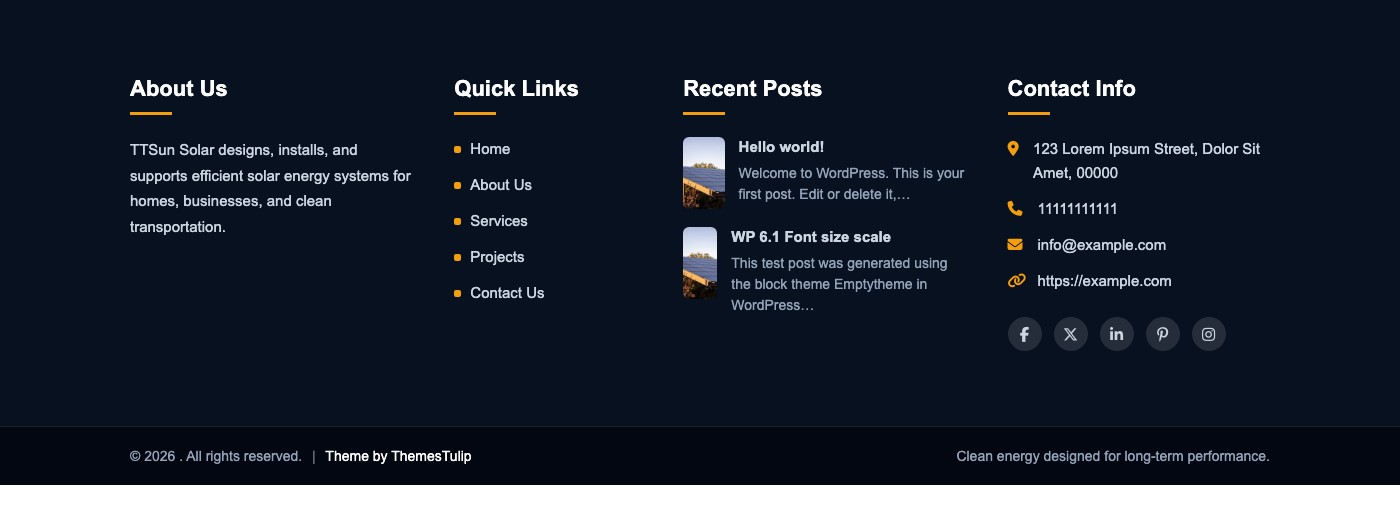
Four columns: About, Quick Links (menu), Recent Posts, Contact Info.

Footer frontend

How to edit: see Edit Footer.

Copyright Bar

Bottom bar with copyright text, ThemesTulip credit link, and optional right-side text (from Footer settings).

Copyright bar frontend

How to edit: see Edit Copyright (and Footer → Copyright bar right text).

How to Edit — Header

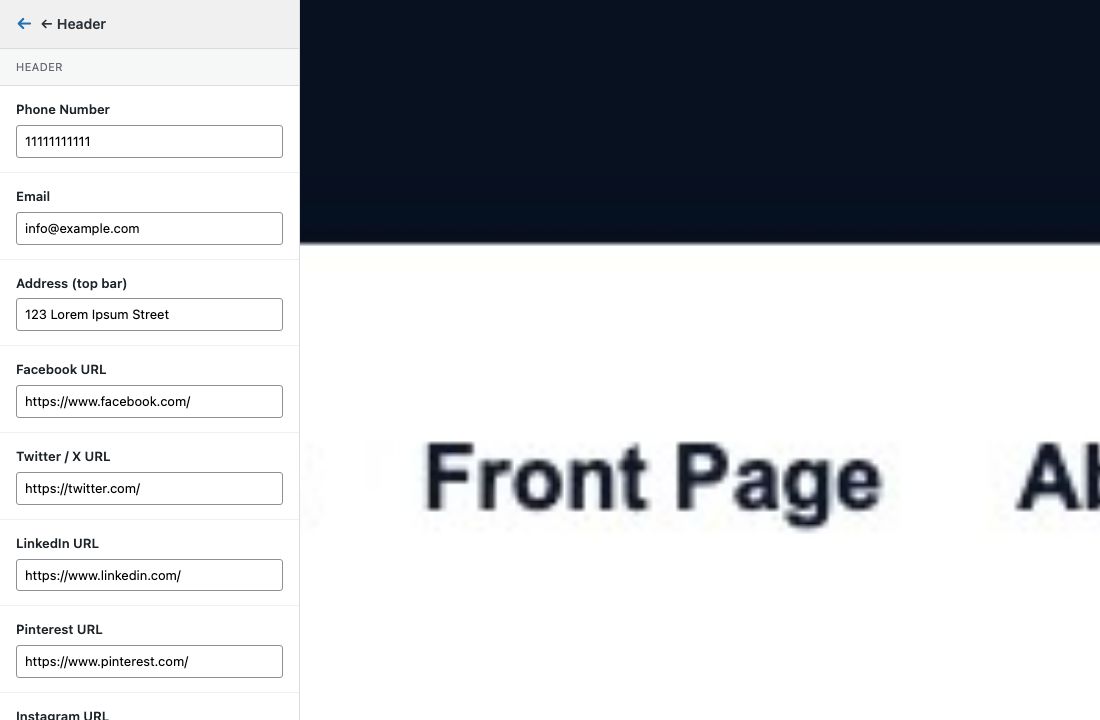
Path: Appearance > Customize → TTSun Solar Theme Options → Header

Customizer Header settings
  1. Open the Customizer and expand TTSun Solar Theme Options.
  2. Click Header.
  3. Update:
    • Phone Number
    • Email
    • Address (top bar)
    • Facebook / Twitter / LinkedIn / Pinterest / Instagram URL — leave blank to hide an icon
  4. Click Publish.

Site title, tagline, and logo are edited under Site Identity (not in this section).

How to Edit — Homepage Banner

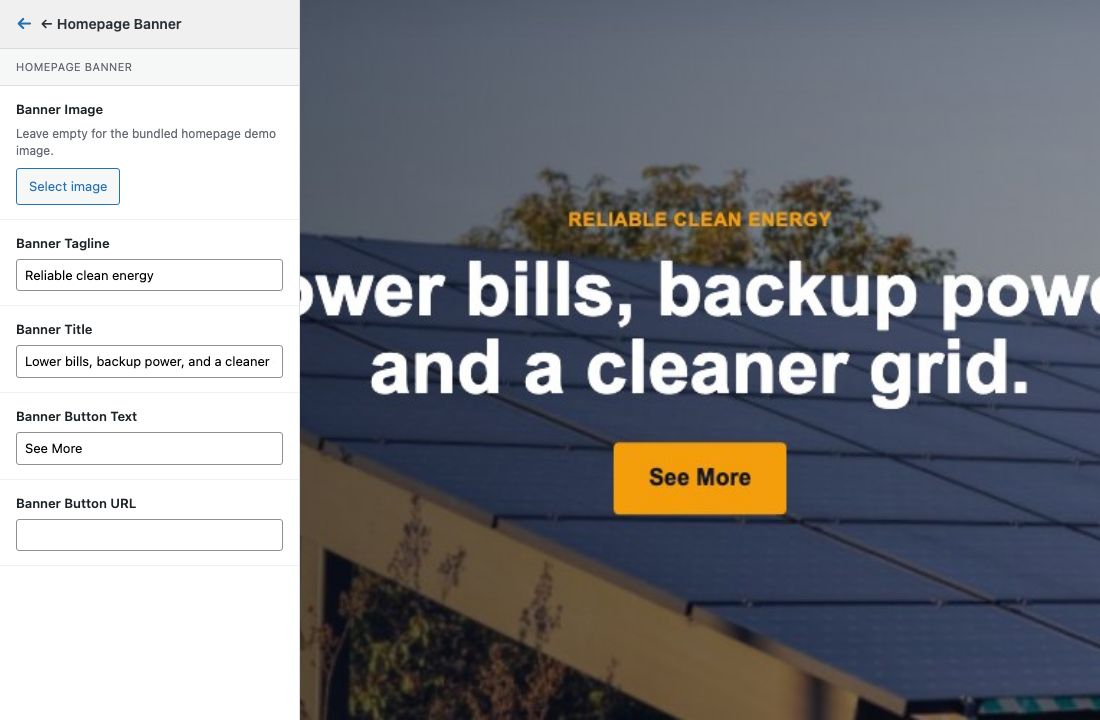
Path: Appearance > Customize → TTSun Solar Theme Options → Homepage Banner

Customizer Homepage Banner settings
  1. Open Homepage Banner.
  2. Banner Image — Select image (recommended wide landscape). Leave empty to use the bundled homepage demo image.
  3. Banner Tagline — small eyebrow text above the title.
  4. Banner Title — main headline.
  5. Banner Button Text + Banner Button URL — CTA button.
  6. Publish. Preview on the front page.

Note: This banner is for the homepage only. Inner pages use a different image (next section).

How to Edit — Inner Page Banner

Path: Appearance > Customize → TTSun Solar Theme Options → Inner Page Banner

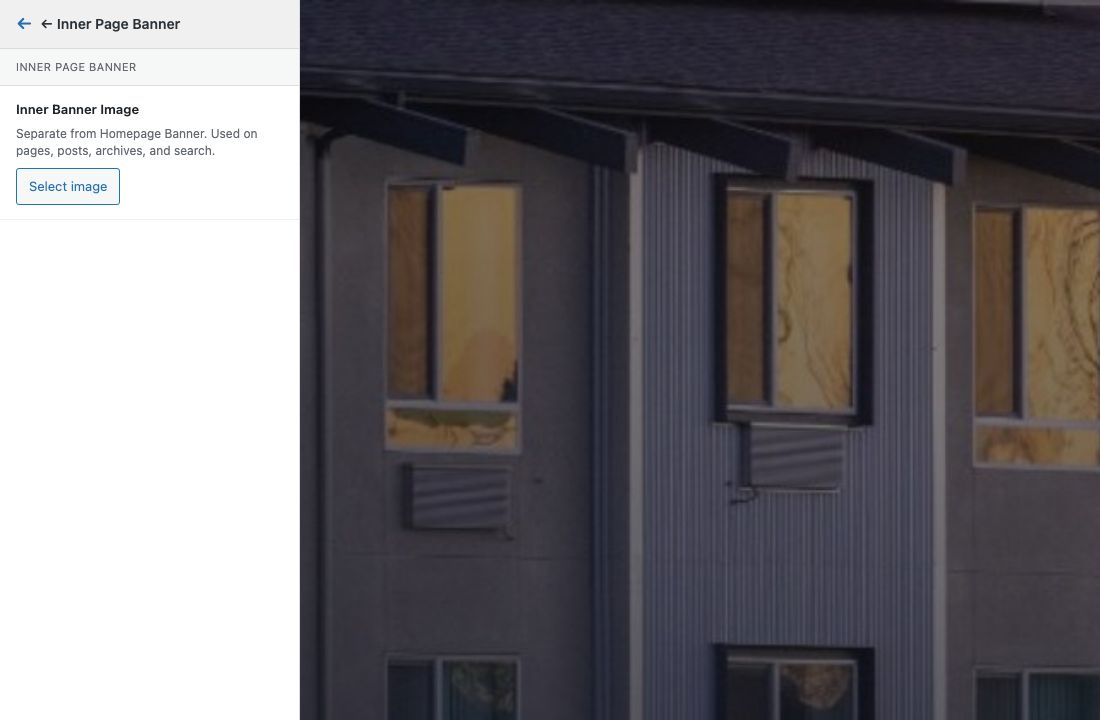
Customizer Inner Page Banner settings
  1. Open Inner Page Banner.
  2. Set Inner Banner Image (or leave empty for the bundled inner-page demo image).
  3. Publish, then open any page/post/archive to confirm.

How to Edit — Solar Services

Path: Appearance > Customize → TTSun Solar Theme Options → Solar Services

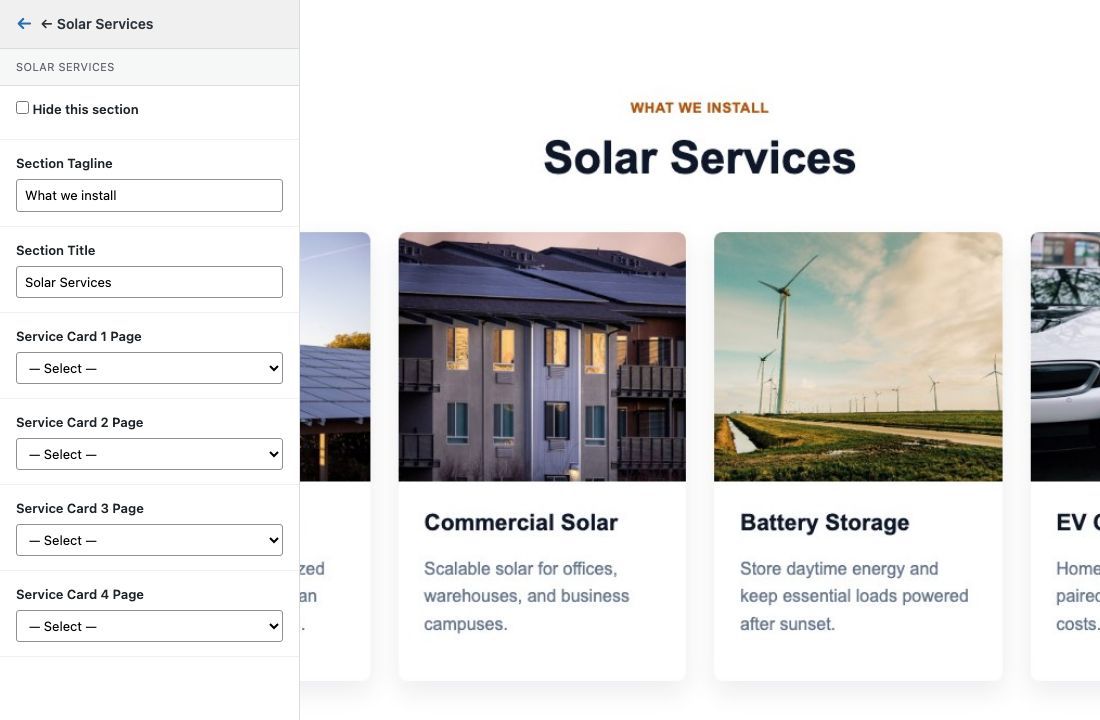
Customizer Solar Services settings
  1. Open Solar Services.
  2. Hide this section — check to remove the block from the homepage.
  3. Section Tagline / Section Title — heading texts.
  4. Service Card 1–4 Page — pick a page for each card. The card uses that page’s title, excerpt, and featured image. Leave empty to keep demo defaults.
  5. Publish.

Tip: Create four pages (e.g. Residential Solar, Commercial Solar, …), set featured images, then assign them here.

How to Edit — Footer

Path: Appearance > Customize → TTSun Solar Theme Options → Footer

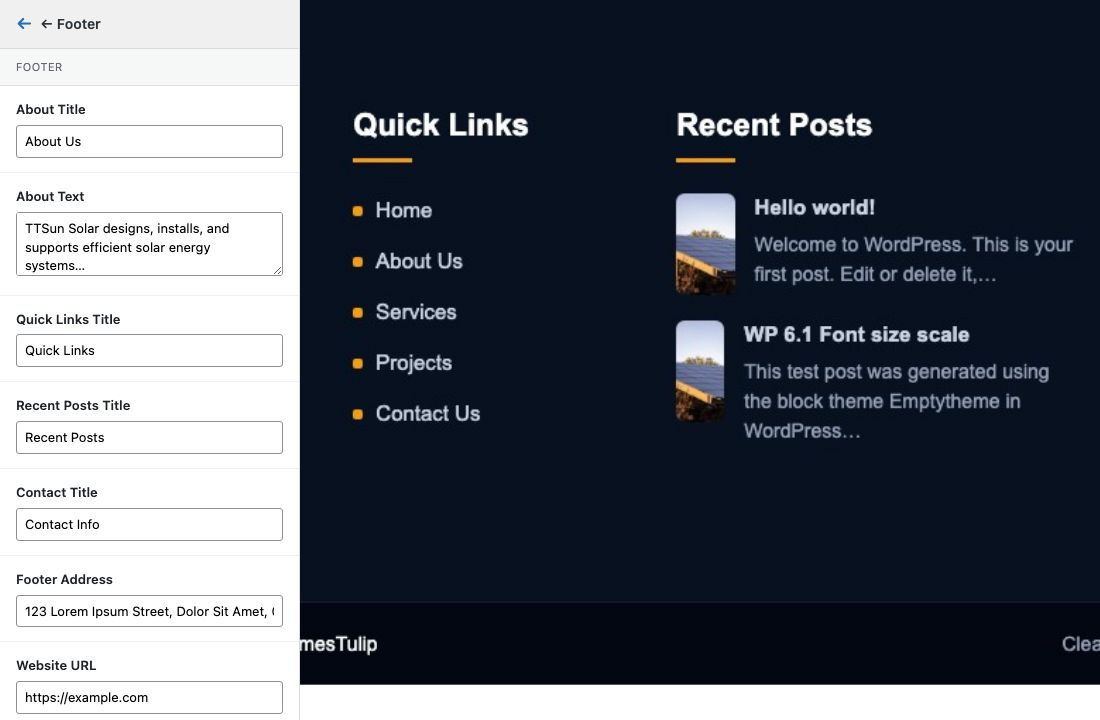
Customizer Footer settings
  1. Open Footer.
  2. Edit column titles and content:
    • About Title / About Text
    • Quick Links Title (menu items come from the footer menu)
    • Recent Posts Title
    • Contact Title, Footer Address, Website URL
    • Copyright bar right text — short line on the right of the copyright bar
  3. Phone / email in the footer contact column reuse Header values when applicable.
  4. Publish.

How to Edit — Copyright

Path: Appearance > Customize → TTSun Solar Theme Options → Copyright

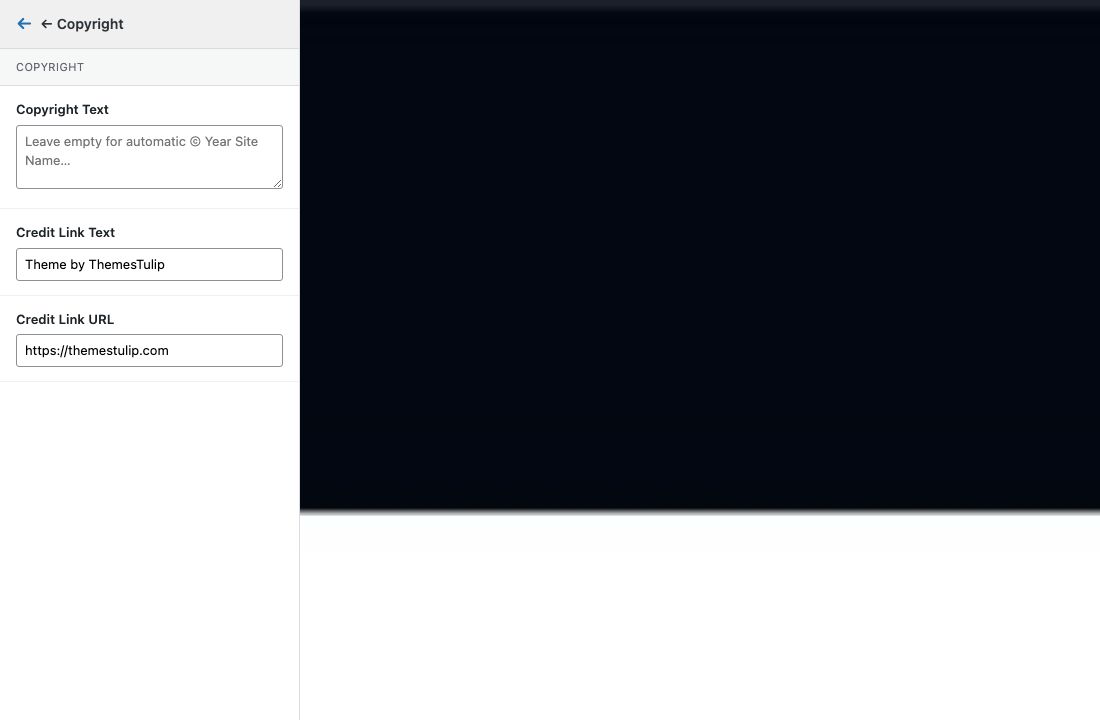
Customizer Copyright settings
  1. Open Copyright.
  2. Copyright Text — custom left text. Leave empty for automatic © Year Site Name. All rights reserved.
  3. Credit Link Text — e.g. “Theme by ThemesTulip”.
  4. Credit Link URL — destination for the credit link.
  5. Publish.

Mobile Menu

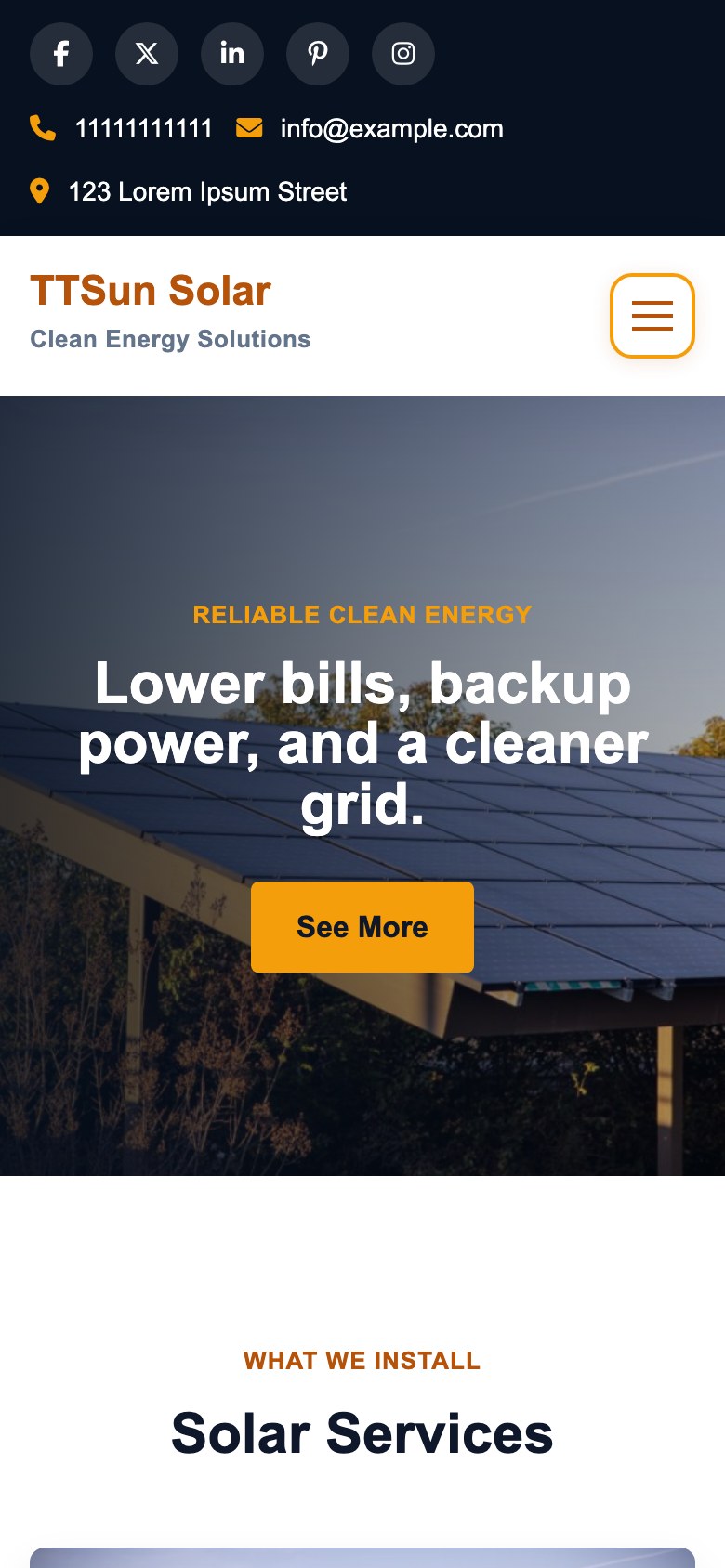
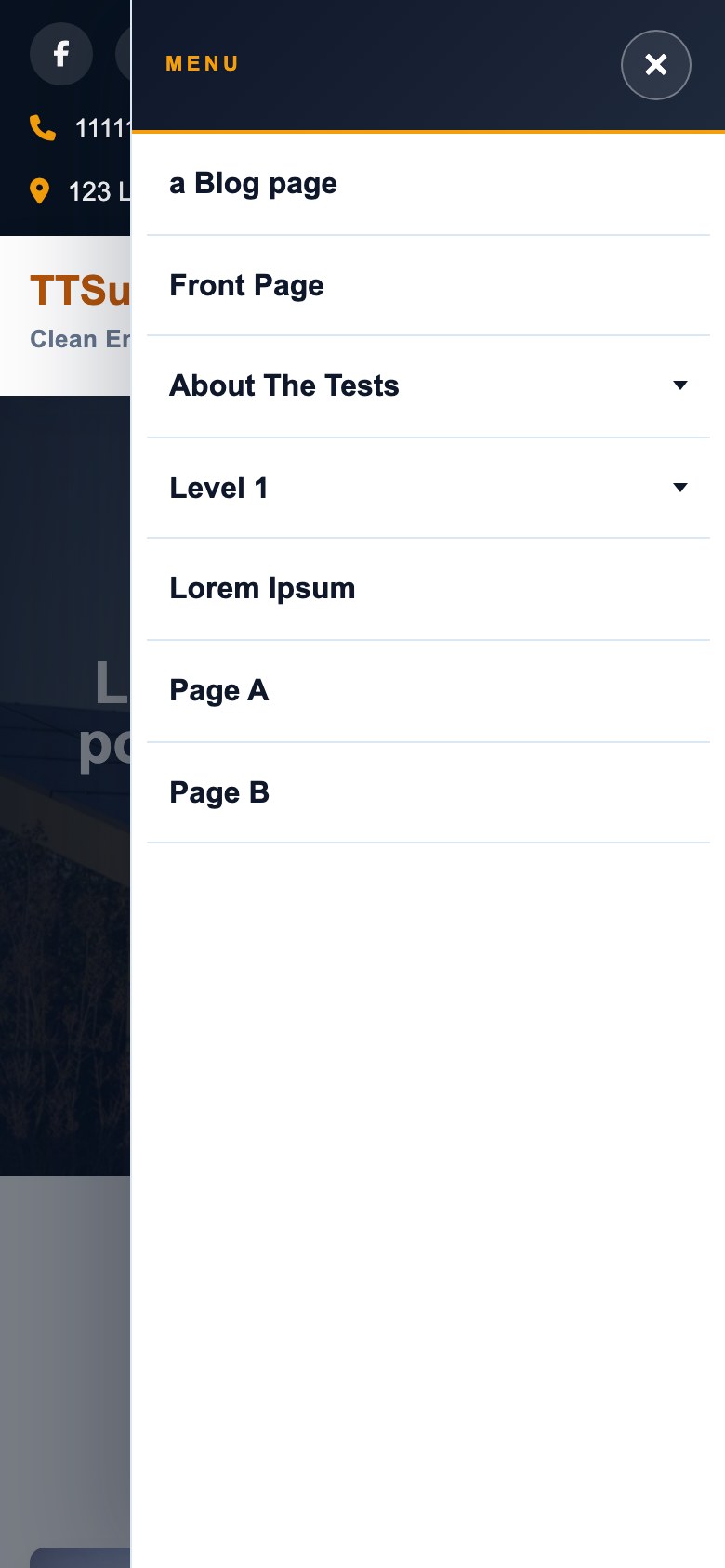
Below 980px, the primary menu becomes a hamburger drawer on the right with a dim overlay.

Mobile homepage Mobile menu drawer open
  • Tap the hamburger to open; use ×, overlay, or Escape to close.
  • Parent items with children toggle the dropdown (open / close) without leaving the drawer.
  • Child links navigate normally.

Upgrade to Pro

TTSun Solar Pro adds more homepage sections (stats, testimonials, gallery, process, financing, calculator, contact, and more), richer Customizer options, demo import, and additional templates.